The Best Wireless Mice for Productivity and Long Editing Sessions
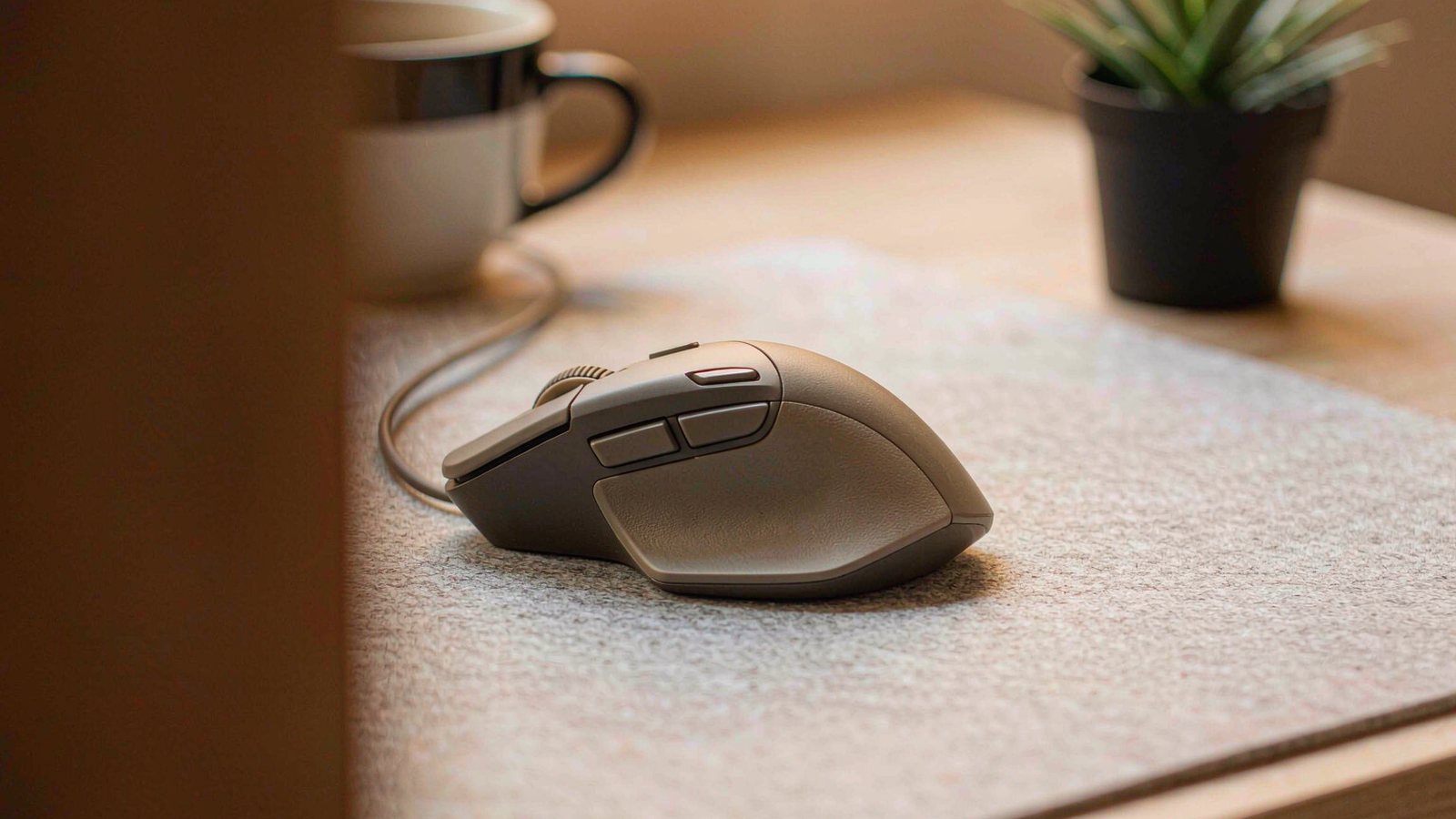
The right mouse is about shape and buttons, not sensor numbers. We compare ergonomics, multi-device switching and battery behaviour for desk work.
Top picks at a glance
Tap any pick to jump to the full breakdown, or use the link to check the current price.
| Pick | Best for | Check price |
|---|---|---|
| Logitech MX Master 3S Best overall | People who work in documents, spreadsheets and timelines for hours at a time | Check price |
| Logitech MX Vertical Best for wrist strain | Anyone whose wrist or forearm aches after a long day at the desk | Check price |
| Kensington Expert Mouse Wireless Trackball Best if you cannot move your arm | People with shoulder or elbow issues who need the arm to stay in one place | Check price |
| Razer Pro Click Best middle ground | Developers and designers who want a comfortable mouse that still feels quick | Check price |
| Keychron M6 Best for mixed gaming and work | A single mouse for both a desk job and evening gaming | Check price |
| Apple Magic Mouse Best for Mac gesture users | Mac users who rely on trackpad-style gestures and like a minimal desk | Check price |
A mouse is the cheapest thing on your desk and the object you touch most. That combination makes it the most under-considered purchase in a home office, and also one of the few where spending a little more changes your day noticeably.
The useful question is almost never about the sensor. It is about size, shape, buttons and whether the scroll wheel can do the thing you need it to. Those are the details that decide whether your hand is comfortable at five in the afternoon.
What matters more than the specification
Shape and hand size
A mouse that is too small forces your fingers to curl into a pinch. A mouse that is too large makes you reach with your thumb and lift your hand to click. Both cause strain, and both are invisible in a specification list. Measure your hand from the base of the palm to the tip of the middle finger. If it is on the smaller side, the large ergonomic mice are the wrong purchase, no matter how good they are.
How the scroll wheel behaves
The scroll wheel is what separates a productivity mouse from a general one. A free-spinning wheel is excellent for long documents and infuriating for precise lists. A ratcheted wheel is the opposite. A second wheel for horizontal scrolling sounds like a gimmick and quickly becomes the feature you would miss most, particularly in spreadsheets and video timelines.
Buttons where your fingers actually rest
Extra buttons are only useful if you can reach them without moving your hand. Two well-placed thumb buttons will get more use than six small ones spread around the body. Think about what you would genuinely assign to them: back and forward, a screenshot shortcut, a clipboard tool. If you cannot name four actions, you do not need many buttons.
Weight and friction
A heavier mouse feels stable and deliberate. A lighter one moves faster with less effort. Neither is better, and both should be matched to the surface. A smooth desk makes a light mouse skittish; a rough surface makes a heavy one tiring. A decent desk mat fixes most of this for very little money.
Switching between computers
If you use more than one machine, multi-device switching is the feature that changes your routine the most. Being able to move between a work laptop and a personal one with a button press removes a daily annoyance in the same way that multipoint Bluetooth does for headphones.
Battery and how you charge it
The practical question is not how long the battery lasts, but whether you can use the mouse while it charges. A mouse with a front-facing charging port can carry on working over a cable. One that charges from the base becomes a paperweight for an hour, usually at the worst moment.
What we would not pay extra for
- Extreme sensor specifications. No office task benefits from figures designed for competitive gaming.
- Customisable lighting. It costs battery and you are covering the mouse with your hand.
- Very high button counts. Most people assign two and forget the rest.
- A premium mouse pad with a brand name printed on it. Buy one that is large, flat and cheap.
- Wireless charging mouse pads. Convenient, expensive, and they tie you to one brand’s ecosystem.
Fixing discomfort without buying a mouse
Before you spend money, check the things that cost nothing.
- Lower your chair or raise your desk so your forearm is roughly level with the desk surface, not angled up to it.
- Move the mouse closer. Reaching forward for hours is a common cause of shoulder tension.
- Support your forearm. Resting the elbow on an armrest keeps the shoulder relaxed.
- Reduce grip force. A lighter, larger mouse encourages a looser grip than a small one you have to pinch.
- Take breaks. No shape compensates for three unbroken hours in the same position.
If the discomfort is around the wrist or forearm specifically, a vertical design is the more targeted change. If it is in your shoulder or elbow, the issue is usually position rather than the mouse itself.
When a wired mouse is the better choice
If you never move your computer, a cable removes charging entirely and usually costs less. If you do precise work where a dropped connection is unacceptable, a cable is the more dependable option. And if you already own a mouse you like, the upgrade that will help most is a larger desk mat and a better chair, not a new mouse.
How this guide was researched
We did not measure sensor accuracy or run ergonomic studies. This comparison is based on published specifications, manufacturer documentation, warranty terms and consistent themes in long-term owner reports, particularly the issues that appear after months of use: coating wear, scroll wheel skipping, switch failure and battery degradation. Where we describe comfort, we are summarising patterns in owner experience rather than results from testing we performed ourselves. Hand size and grip style are personal, so treat the shortlist as a starting point and check the current price and the return policy before committing.
Our picks in detail
Logitech
01 Logitech MX Master 3S
A sculpted shape with a second scroll wheel for horizontal movement and one of the quietest click mechanisms available. It is a large mouse, and that single fact decides whether it suits you.
Best for: People who work in documents, spreadsheets and timelines for hours at a time
- Sculpted right-handed shape with a thumb rest
- Second thumb wheel for horizontal scrolling
- Quiet click switches
- Multi-device switching across several computers
Pros
- Horizontal scroll wheel is genuinely useful and hard to give up
- Very quiet clicks for shared spaces
- Comfortable for full working days
Cons
- Too large for small hands and for travel
- Right-handed shape only, with no left-hand version
We may earn a commission from this link. Learn more.
Logitech
02 Logitech MX Vertical
A vertical design that turns the hand onto its side, which reduces the forearm rotation that causes a lot of desk discomfort. It takes a week to adapt to and some people never do.
Best for: Anyone whose wrist or forearm aches after a long day at the desk
- Vertical grip angled to keep the hand in a handshake position
- Multi-device switching and adjustable sensitivity
- Rechargeable battery with USB charging
- Textured surface for grip
Pros
- Reduces forearm twisting compared with a flat mouse
- Easy to switch between two computers
- Comfortable for long sessions once adjusted
Cons
- Precision work takes practice with the vertical grip
- Awkward for gaming and fast drag operations
We may earn a commission from this link. Learn more.
Kensington
03 Kensington Expert Mouse Wireless Trackball
A trackball with a large ball and a scroll ring, operated with the fingers while the hand stays still. It is the strongest option for shoulder and arm problems, and the least conventional thing on this list.
Best for: People with shoulder or elbow issues who need the arm to stay in one place
- Large central trackball operated by the fingers
- Scroll ring around the ball for vertical movement
- Four programmable buttons
- Wireless connection with a wrist rest included
Pros
- Eliminates the repeated arm movement of a normal mouse
- Scroll ring is easy to use with the thumb or fingers
- Large ball suits people who dislike tiny trackballs
Cons
- Steep learning curve for precise selection
- Takes up a fixed area of desk and needs cleaning regularly
We may earn a commission from this link. Learn more.
Razer
04 Razer Pro Click
An ergonomic shape developed with an office furniture maker, sitting between a gaming mouse and a productivity one. It is lighter and more agile than the Logitech, with less room for your thumb.
Best for: Developers and designers who want a comfortable mouse that still feels quick
- Ergonomic right-handed shape with a moderately high hump
- Multi-device wireless and wired modes
- Programmable buttons
- Rechargeable battery
Pros
- Comfortable without being as bulky as the largest options
- Quick enough for precision work and light gaming
- Wired mode available if the battery runs out
Cons
- Fewer buttons than the flagship productivity mice
- Battery life is shorter than the plain office models
We may earn a commission from this link. Learn more.
Keychron
05 Keychron M6
A high polling rate wireless mouse with a shape closer to a productivity design, including a thumb wheel. It suits people who want one mouse for the working day and the evening.
Best for: A single mouse for both a desk job and evening gaming
- Wireless connection with a high polling rate mode
- Thumb wheel for horizontal scrolling
- Programmable buttons and onboard profiles
- Lightweight body
Pros
- Responsive enough for fast-paced games
- Thumb wheel helps with wide documents and timelines
- Light and easy to move quickly
Cons
- Less sculpted than the dedicated ergonomic designs
- High polling mode reduces battery life noticeably
We may earn a commission from this link. Learn more.
Apple
06 Apple Magic Mouse
A flat, gesture-driven surface that suits Mac users who have built habits around swipes and two-finger scrolling. The charging port placement is awkward, and the lack of shape is a real comfort problem for many.
Best for: Mac users who rely on trackpad-style gestures and like a minimal desk
- Touch-sensitive top surface for gestures
- Wireless connection with automatic pairing to a Mac
- Low profile design
- Rechargeable battery charged over a cable
Pros
- Gesture support matches trackpad habits closely
- Minimal and unobtrusive on a desk
- Pairs instantly with Apple computers
Cons
- Flat shape offers no support for the hand
- Cannot be used while charging on most versions
We may earn a commission from this link. Learn more.
The bottom line
Our verdict
For most desk workers the Logitech MX Master 3S is the safest choice: the shape and the horizontal scroll wheel make long document and spreadsheet sessions noticeably easier, and the quiet clicks suit shared spaces. If your wrist hurts, the vertical design is the more important upgrade, even though it takes a week to get used to. Choose the trackball only if arm movement is a genuine problem, and consider the Apple mouse only if you are already committed to Mac gestures. Before buying anything, check the size against your hand, because an excellent mouse that is too large for you is worse than an average one that fits.
Frequently asked questions
Does DPI matter for office work?
Much less than marketing suggests. Anything in the normal productivity range is fine, and most people settle on a setting they never change. What matters far more is whether the shape suits your hand and whether the buttons are where your fingers naturally rest. A comfortable mouse beats a high specification one every time.
Is a vertical mouse better for everyone?
No. It reduces forearm rotation, which helps people whose discomfort comes from that specific position. People whose pain comes from grip force, shoulder position or the desk height will not be helped by it. It is also genuinely awkward for precise dragging until you adapt, and not everyone does.
How long should a wireless mouse battery last?
Depends on the design, the polling rate and the lighting. Productivity mice usually last weeks or months per charge, while high performance gaming designs may need charging several times a week. The practical feature to look for is the ability to use the mouse while it charges, which removes the problem entirely.
Should I use a mouse pad if my desk is smooth?
Usually yes. A pad gives consistent friction so the sensor tracks predictably, protects the desk surface and reduces noise. A large desk mat also lets you rest your wrist on something softer than a hard table, which helps more than most people expect.
Sources & further reading
- Logitech mice — official product and specification pages
- Kensington trackballs — official product pages
- Razer productivity mice — official product pages
Facts and availability last checked September 15, 2026.
Keep going
Related guides
 Tech
Tech The Best Noise-Cancelling Headphones for Commuters and Open Offices
We compared over-ear noise-cancelling headphones on published specs, comfort for long wear, call quality and warranty cover — plus which models to skip and why.
 Tech
Tech The Best Robot Vacuums for Homes With Pets and Constant Hair
Pet hair is the hardest test for a robot vacuum. We compare brush designs, self-emptying bases and navigation to find the ones that cope with real animals.
 Tech
Tech The Best Laptops for College Students Who Don't Want to Replace Them in Two Years
A student laptop should survive four years, not two. We compare repairability, battery, keyboard and support policies instead of benchmark charts.