The Best USB-C Hubs and Docks for a Laptop-First Desk
Laptops lost their ports, so the hub became the desk. We compare power delivery, display limits and heat behaviour to find the ones that stay reliable.
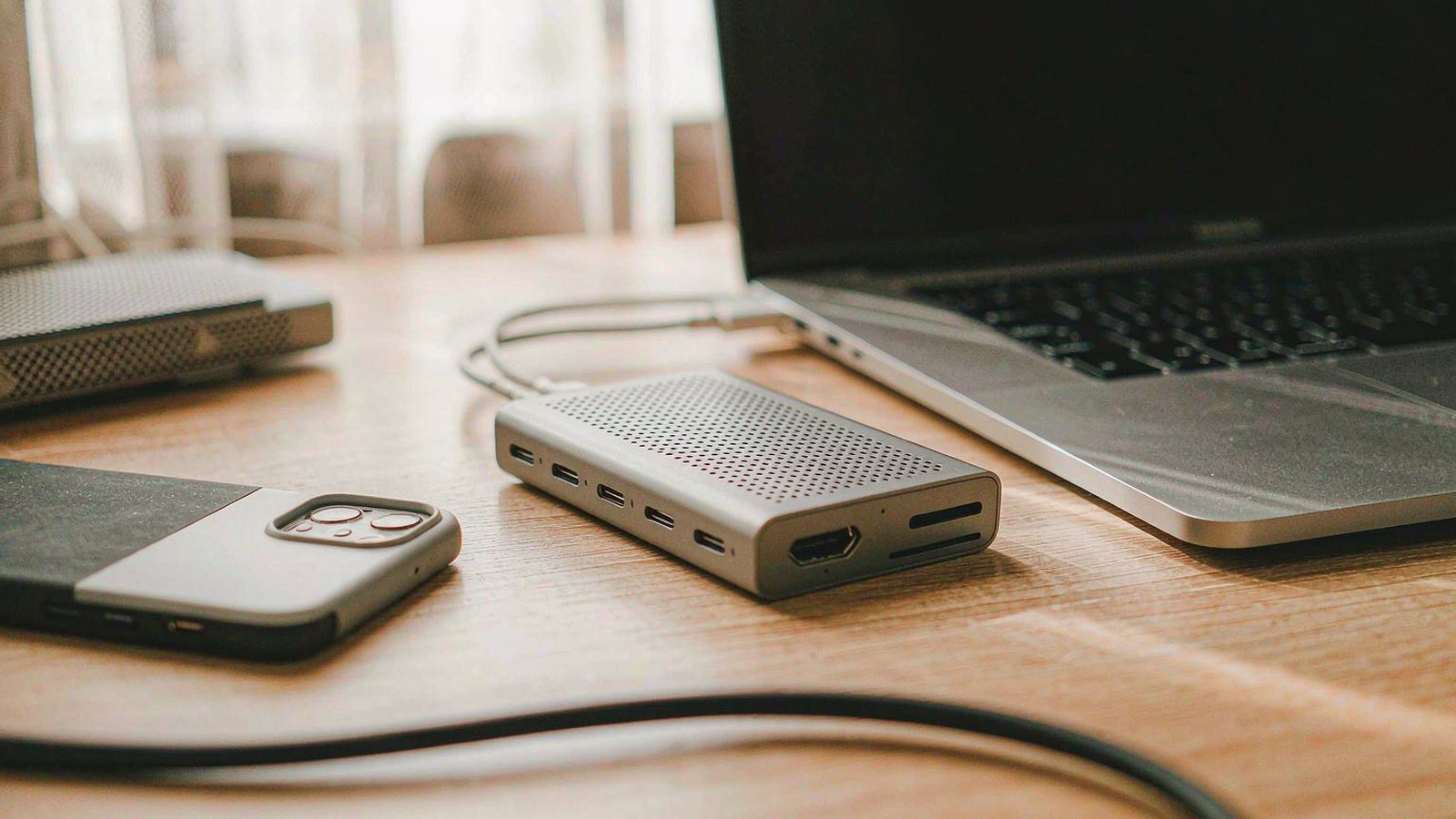
Top picks at a glance
Tap any pick to jump to the full breakdown, or use the link to check the current price.
| Pick | Best for | Check price |
|---|---|---|
| CalDigit TS4 Thunderbolt Station Best for a full desk setup | A permanent desk where a laptop is the only computer and everything else plugs into one box | Check price |
| Anker 555 USB-C Hub (8-in-1) Best everyday hub | A flexible hub that moves between desks, bags and meeting rooms | Check price |
| Plugable USB-C Triple Display Docking Station Best for multiple monitors on Windows | Windows laptops that need to drive several monitors from one cable | Check price |
| Dell WD22TB4 Thunderbolt Dock Best for Dell and managed laptops | Work-issued laptops where IT support and standardisation matter | Check price |
| Satechi Thunderbolt 4 Dock Best compact desktop dock | A tidy desk where appearance matters alongside function | Check price |
| UGREEN Revodok Pro 313 Best budget dock | A first dock on a tight budget, or a second desk in a spare room | Check price |
The modern laptop trade is simple and slightly annoying. You get a thinner machine with better battery life, and in exchange you give up the ports. For a while you survive with one dongle. Then you add a monitor, a keyboard, an external drive and a wired network connection, and suddenly you are running a small and unreliable switchboard every morning.
A hub or a dock is the fix. The problem is that these products fail in ways that specifications do not predict, and the failures are almost always about bandwidth, power and heat rather than the number of sockets.
Hub or dock, and why the difference saves money
A hub is bus-powered. It takes everything it needs from the laptop over one cable. That makes it small, cheap and portable, and it also sets the ceiling on what it can do.
A dock has its own power supply. It can charge the laptop properly, run more ports at once and stay cooler while doing it. It stays on a desk.
The practical rule is straightforward. If the hub travels with you, buy a hub and accept the limits. If the laptop comes home to the same desk, buy a dock. Buying a dock you never move is sensible; buying a hub to run a permanent three-monitor desk is where most frustration starts.
The specifications that actually predict trouble
Display output is a laptop property, not a hub property
This is the single biggest source of confusion. Many USB-C ports carry one display stream. A hub plugged into such a port cannot invent a second independent monitor, no matter what its packaging implies. Laptops with Thunderbolt, or with a clearly stated multi-stream capability, can drive more. Check what your specific machine supports before you choose, because the same hub behaves completely differently on two different laptops.
Power delivery has a budget
A dock that claims to charge your laptop and power several accessories is dividing one supply between them. When everything is attached, the laptop may receive less than its maximum rate, and a demanding laptop may slowly drain while plugged in. If charging speed matters, look for a dock that delivers comfortably more than your laptop’s rated requirement.
Ports share lanes
Every hub has a total bandwidth that its ports divide. Copying a large file over Ethernet while writing to an external drive over USB and driving a display will not run at the speed of any one of those tasks alone. This is normal and not a fault. It does mean that a hub labelled with several fast ports will not deliver all of them at full speed simultaneously.
Wireless interference is real
The high-speed signalling inside a hub and its cable can interfere with wireless peripherals and with Wi-Fi bands in congested areas. If your mouse stutters only when a drive is connected, this is usually why. Moving the hub away from wireless receivers and using a short cable often helps.
Heat, and what it means over years
Bus-powered hubs run warm because all the conversion happens in a small metal shell. That is expected. Sustained heat is still the main long-term threat to a hub’s electronics, which is one reason a powered dock with a larger case tends to last longer on a permanent desk.
What we would not pay extra for
- Card readers you will use twice a year. Fine to have, never worth a price premium.
- A high port count you cannot power. Ten sockets drawing on one budget behave worse than five used within it.
- Very short host cables. A hub you cannot position sensibly will be replaced.
- Ridged or novelty housings. They collect dust and rarely help with heat.
- A brand’s proprietary docking connector unless you plan to stay with that brand.
Matching a hub to your laptop in four steps
- Find out what your laptop’s USB-C port actually supports. Look for Thunderbolt or an explicitly stated display capability.
- Count the devices you plug in daily, not the ones you might plug in someday.
- Check the laptop’s power requirement and confirm the hub exceeds it with headroom.
- Decide whether the hub moves. That single answer picks the category for you.
- Plan where the cable runs, including how the lid closes if you use the laptop in clamshell mode.
- Keep the receipt and the packaging until you have run a full working week. Intermittent dropouts take days to appear.
When a dock is the wrong purchase
If your laptop already has the ports you need, a dock is an expensive way to add clutter. If you are chasing a single extra USB-A socket, a small adapter costs far less than a dock.
And if the real problem is that you unplug and replug six cables every morning, the honest answer may be to leave the monitor and peripherals connected to a cheaper hub permanently and simply unplug one cable, rather than buying the most expensive dock available.
How this guide was researched
We did not run bandwidth or thermal testing. This comparison is based on published specifications, manufacturer compatibility documentation, driver and firmware release notes and consistent themes in long-term owner reports, particularly dropouts and display issues that emerge weeks after purchase. Where we describe heat or reliability, we are summarising patterns in owner experience rather than results from a test bench. Compatibility between laptops and docks varies enormously, so treat the manufacturer’s compatibility list as the starting point and check the current price and return policy before buying.
Our picks in detail
CalDigit
01 CalDigit TS4 Thunderbolt Station
The dock people buy when they are tired of solving the same problem every eighteen months. Plenty of ports, high power delivery and a reputation for staying connected, at a price that reflects it.
Best for: A permanent desk where a laptop is the only computer and everything else plugs into one box
- Thunderbolt connection with high power delivery to the host
- Large port count including multiple display outputs and Ethernet
- Front and rear port layout for tidier cable routing
- Works with Thunderbolt and USB-C laptops, with different capabilities on each
Pros
- Enough ports that you stop needing adapters
- Braided host cable and a metal chassis built for a desk
- Consistent record of maintaining connections under load
Cons
- Expensive for a home desk
- Full functionality depends on a Thunderbolt-equipped laptop
We may earn a commission from this link. Learn more.
Anker
02 Anker 555 USB-C Hub (8-in-1)
A small aluminium hub that covers the common sockets without a power brick. The honest limitation is that everything shares one USB-C connection back to the laptop, so heavy tasks compete for bandwidth.
Best for: A flexible hub that moves between desks, bags and meeting rooms
- Aluminium body with a short integrated host cable
- HDMI output plus USB-A, USB-C data and card readers
- Pass-through charging while in use
- Bus-powered with no separate power supply
Pros
- Small enough to live in a laptop sleeve
- No external power brick to lose
- Covers the ports most people actually use
Cons
- Ports share bandwidth and compete under load
- Gets warm during charging and data transfer at the same time
We may earn a commission from this link. Learn more.
Plugable
03 Plugable USB-C Triple Display Docking Station
A display-focused dock for people running two or three screens. It uses a display link approach, which works well on Windows and requires a driver, and that driver is the thing to understand before buying.
Best for: Windows laptops that need to drive several monitors from one cable
- Multiple display outputs for two or three monitors
- Separate power supply with high wattage host charging
- Wired network and a generous set of USB ports
- Requires a host driver for the display outputs
Pros
- Drives more monitors than native USB-C output allows
- External power supply means the dock stays cool and stable
- Firmware and driver updates published by the manufacturer
Cons
- Requires installing a driver, which some managed laptops block
- Not suitable for games or colour-critical work on the extra screens
We may earn a commission from this link. Learn more.
Dell
04 Dell WD22TB4 Thunderbolt Dock
The corporate standard for a reason. It wakes reliably, integrates with fleet management tools and pairs cleanly with Dell laptops. It makes less sense if you use another brand or own your own machine.
Best for: Work-issued laptops where IT support and standardisation matter
- Thunderbolt dock with modular cable and power connector options
- Multiple display outputs and a full set of USB ports
- Managed firmware updates
- High wattage host charging
Pros
- Very reliable wake-from-sleep behaviour
- Modular cable can be replaced if it is damaged
- Straightforward to support in an organisation
Cons
- Price is aimed at businesses rather than individuals
- Best experience is on Dell hardware
We may earn a commission from this link. Learn more.
Satechi
05 Satechi Thunderbolt 4 Dock
A metal dock that looks deliberate on a desk and covers the essentials without the footprint of a corporate brick. Fewer ports than the CalDigit, and that is the trade for the smaller body.
Best for: A tidy desk where appearance matters alongside function
- Thunderbolt connection with host charging
- Multiple USB ports plus Ethernet and display output
- Aluminium chassis with an upright design
- Front-facing ports for quick access
Pros
- Small footprint for a desktop dock
- Clean design that suits a visible desk
- Solid metal construction
Cons
- Fewer ports than the larger docks
- Runs warm with everything attached
We may earn a commission from this link. Learn more.
UGREEN
06 UGREEN Revodok Pro 313
The cheapest way to get a proper desktop dock with its own power supply. Port selection is narrower and documentation thinner, but the core job is done for a fraction of the price.
Best for: A first dock on a tight budget, or a second desk in a spare room
- External power supply with pass-through laptop charging
- Multiple USB ports and display outputs
- Wired network connection
- Compact vertical body
Pros
- Much cheaper than the premium docks
- External power keeps the body cooler than bus-powered hubs
- Enough ports for a normal desk
Cons
- Documentation and firmware support are thinner than the big brands
- Display options depend heavily on the host laptop's capabilities
We may earn a commission from this link. Learn more.
The bottom line
Our verdict
If the desk is permanent and you want to stop thinking about it, the CalDigit dock is the one people keep for years, and it earns the price through port count alone. Most casual users will be perfectly served by the small Anker hub, which costs a fraction and lives in a bag when you move. Choose the Plugable only if you genuinely need three monitors and can install a driver, and choose the Dell if your laptop came from an IT department. Whatever you buy, check what your specific laptop can output over USB-C first, because the most common disappointment with docks is a laptop limitation rather than a dock fault.
Frequently asked questions
Why do my two monitors not work through the hub?
This is usually a laptop limitation rather than a hub failure. Many USB-C ports carry a single display stream by default, so a hub cannot create a second independent screen out of it. Laptops with Thunderbolt or with a stated multi-stream display capability can. Check your laptop's specification before blaming the dock.
Should I buy a hub or a dock?
A hub is small, bus-powered and cheap, and it travels well. A dock has its own power supply, more ports and usually better sustained performance, but it stays on a desk. If you move between locations, buy a hub. If you plug the same laptop into the same desk every day, buy a dock.
Why does my hub get hot?
Converting and passing power generates heat, particularly when you are charging the laptop and moving data at the same time. Warm is normal. Too hot to hold comfortably, dropouts or a hub that resets under load are not, and usually mean the hub is being asked for more power than it can deliver.
Does the hub need its own power supply?
A bus-powered hub draws everything from the laptop, which limits how much it can charge and how many devices it can drive. A powered dock takes the load off the laptop and is more stable, but needs another socket and another cable to manage.
Sources & further reading
- CalDigit — official dock product and compatibility pages
- Anker USB-C hubs — official product pages
- Plugable docking stations — official product and driver pages
Facts and availability last checked September 15, 2026.
Keep going
Related guides
 Tech
Tech The Best Noise-Cancelling Headphones for Commuters and Open Offices
We compared over-ear noise-cancelling headphones on published specs, comfort for long wear, call quality and warranty cover — plus which models to skip and why.
 Tech
Tech The Best Robot Vacuums for Homes With Pets and Constant Hair
Pet hair is the hardest test for a robot vacuum. We compare brush designs, self-emptying bases and navigation to find the ones that cope with real animals.
 Tech
Tech The Best Laptops for College Students Who Don't Want to Replace Them in Two Years
A student laptop should survive four years, not two. We compare repairability, battery, keyboard and support policies instead of benchmark charts.